Export CRM Contacts to Google Contacts: A Complete Guide for Real Estate Teams
Introduction
Managing hundreds or thousands of property buyers, sellers, investors, and leads can become difficult when contact information is spread across Excel sheets, phones, and different platforms. Real estate agents and sales teams need an organized way to keep their contacts accessible and up to date.
If your contacts are stored in a real estate CRM software, exporting them to Google Contacts can make it easier to access client information from Gmail, Google Calendar, Android devices, and other Google services.
In this guide, we'll explain how to export CRM contacts to Google Contacts, why it is useful for real estate professionals, and how a CRM such as Tranquil CRM can help simplify contact and lead management.
What Is Google Contacts?
Google Contacts is a contact management service connected to your Google Account. It allows users to store and organize names, phone numbers, email addresses, company details, notes, and other contact information.
For real estate professionals, Google Contacts can provide quick access to important client information while communicating with leads and customers.
For example, an agent may store:
- Buyer names and contact details
- Seller information
- Property investors
- Property owners
- Rental leads
- Referral partners
- Past customers
- Prospective buyers
- Real estate vendors
When CRM contacts are exported and imported into Google Contacts, agents can access important contact information from multiple devices.
Why Export Real Estate CRM Contacts to Google Contacts?
Real estate businesses often manage a large number of contacts. Exporting CRM contacts to Google Contacts can be useful for several reasons.
Easy Access to Client Information
Google Contacts makes contact information accessible across supported Google services and devices.
Agents can quickly find a client's phone number or email address without opening the CRM every time.
Better Contact Organization
Real estate CRM platforms may contain thousands of records. Exporting selected contacts to Google Contacts can provide an additional way to organize important clients and prospects.
Convenient Communication
When contact information is available through Google services, agents can more easily access information while sending emails, scheduling meetings, or following up with clients.
Backup and Data Portability
Exporting contacts can also help businesses maintain a separate copy of important contact data.
However, exported files should be stored securely because real estate contact information may contain sensitive business and personal details.
What Information Can Be Exported From a Real Estate CRM?
The exact fields available depend on the CRM and the export format.
A typical real estate CRM contact export may include:
- First name
- Last name
- Phone number
- Email address
- Company
- Job title
- Address
- Lead source
- Contact type
- Notes
- Tags
- Additional custom fields
For example, Tranquil CRM's features can be used to organize real estate contacts and lead information in one centralized system before exporting relevant contact data.
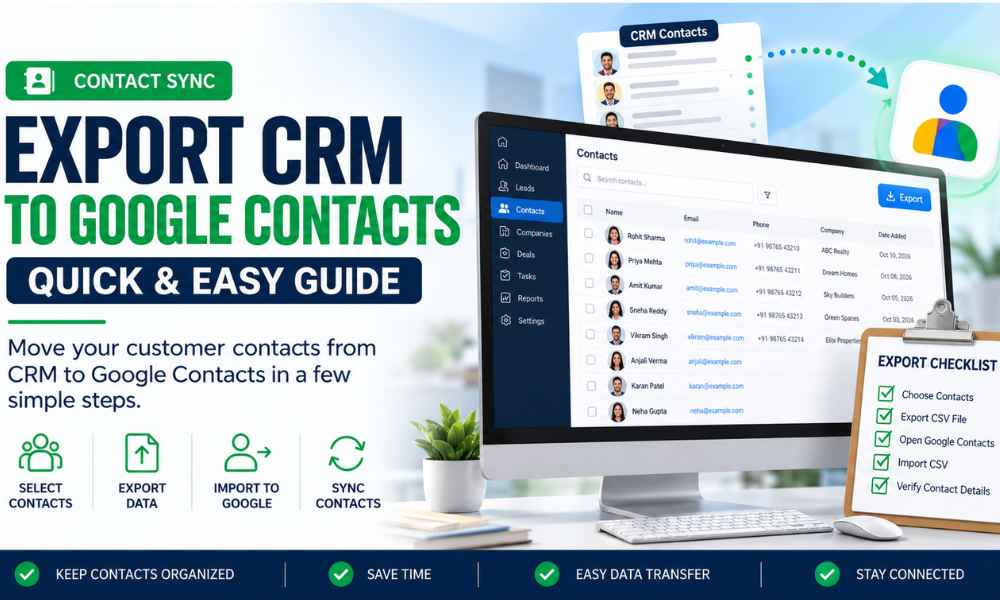
How to Export CRM Contacts to Google Contacts
The process generally involves two steps:
- Export contacts from your CRM.
- Import the exported file into Google Contacts.
Let's look at the process in detail.
Step 1: Log In to Your Real Estate CRM
First, log in to your CRM account.
If you are using Tranquil CRM, open your contact or lead management area where your real estate contacts are stored.
Before exporting, review the contacts you want to transfer.
You may want to export:
- All contacts
- Active leads
- Qualified leads
- Buyers
- Sellers
- Investors
- Specific sales pipelines
- Contacts belonging to a particular agent
Step 2: Review and Clean Your CRM Contacts
Before exporting your contacts, clean the data.
Check for:
- Duplicate contacts
- Incorrect phone numbers
- Invalid email addresses
- Missing names
- Old contact records
- Duplicate leads
- Incomplete information
Clean data makes the Google Contacts import process more effective.
Step 3: Select the Contacts You Want to Export
Most CRM platforms provide an option to select contacts or export a contact list.
Depending on your CRM setup, you may be able to filter contacts based on criteria such as:
- Lead status
- Location
- Property interest
- Assigned agent
- Lead source
- Date created
- Customer type
For example, a real estate agency may export only active buyer leads instead of its entire CRM database.
Step 4: Export the Contacts
Look for an option such as:
Contacts → Export → CSV
CSV is a commonly used format for transferring contact information between different platforms.
Save the exported file to a secure location on your computer.
Step 5: Sign In to Google Contacts
Open Google Contacts and sign in using the Google Account where you want to store the contacts.
From the Google Contacts interface, look for the Import option.
Step 6: Import the CRM Contact File
Choose the CSV file exported from your CRM.
Upload the file and follow the instructions provided by Google Contacts. Google's own guide to importing contacts explains the supported file types and options.
Google will process the contact information and add the records to your account.
Step 7: Check the Imported Contacts
After importing the file, review your Google Contacts.
Check whether:
- Names were imported correctly
- Phone numbers are displayed correctly
- Email addresses are correct
- Duplicate contacts were created
- Important information is missing
If necessary, clean up or merge duplicate contacts.
CSV vs Google CSV: Which Format Should You Use?
When transferring CRM contacts, the file format matters.
A CRM may export contacts using a standard CSV structure, while Google Contacts may use its own expected field structure.
If certain fields do not map correctly during import, you may need to adjust the CSV column headers before importing the file.
For example:
| CRM Field | Google Contact Field |
| First Name | First Name |
| Last Name | Last Name |
| Mobile | Mobile |
| Company | Company |
| Address | Address |
| Notes | Notes |
Not every CRM field will necessarily have a direct equivalent in Google Contacts.
Real estate-specific fields such as budget, preferred location, project interest, or site visit status may need to be combined into the Notes field or left in the CRM.
Common Import Problems and How to Fix Them
Duplicate Contacts
If the same person already exists in Google Contacts, importing the file again can create duplicates. Use the merge and fix option in Google Contacts after the import.
Phone Numbers Without Country Codes
Numbers saved without a country code (for example, +91 for India) may not work correctly for calling or messaging. Standardize phone formats in the CRM before exporting.
Fields in the Wrong Columns
If first and last names or phone and email values appear in the wrong place, check the column headers in your CSV file and rename them to match the Google Contacts format.
Special Characters Not Displaying
Names in regional languages may show broken characters if the file isn't saved with UTF-8 encoding. Re-save the CSV as UTF-8 and import again.
Large Files Failing to Upload
Very large contact lists may be easier to import in smaller batches, such as by project, location, or lead status.
Best Practices for Real Estate Contact Management
- Keep the CRM as the main source of truth for leads and customers
- Export only the contacts your team actually needs on Google
- Standardize phone numbers, names, and email formats before every export
- Use labels in Google Contacts, such as Buyers, Sellers, Investors, or Channel Partners
- Store exported CSV files securely and delete old copies
- Limit export access to authorized team members
- Refresh exports regularly so Google Contacts doesn't fall out of date
Teams that work with brokers can also keep partner details organized with channel partner management inside the CRM, and export only the contacts they need on their phones.
How Tranquil CRM Helps Manage Real Estate Contacts
Google Contacts is useful for quick access, but it isn't designed to manage the full property sales journey.
A real estate CRM such as Tranquil CRM keeps contact details connected to the information sales teams actually need:
- Property requirement and budget
- Project the enquiry belongs to
- Assigned sales executive
- Follow-up history and next action
- Site visit and booking status
- Lead source and sales performance tracking
This makes it easier to export clean, organized contacts whenever your team needs them in Google Contacts, while the complete customer history stays in the CRM. Tools like WhatsApp integration and automated email follow-ups can then work from the same contact data.
Frequently Asked Questions
Can I export CRM contacts to Google Contacts?
Yes. Most CRM platforms allow you to export contacts as a CSV file, which can then be imported into Google Contacts using the Import option.
What file format does Google Contacts accept?
Google Contacts supports CSV and vCard (VCF) files. CSV is the most common format for exporting contacts from a CRM.
Will all my CRM fields transfer to Google Contacts?
Not always. Standard fields such as name, phone, email, company, and address usually map correctly, but custom real estate fields may need to be added to Notes or kept in the CRM.
How do I avoid duplicate contacts after importing?
Clean duplicates in your CRM before exporting, and use the merge and fix option in Google Contacts after the import.
Do contacts sync automatically between the CRM and Google Contacts?
A CSV export is a one-time transfer. If you need updated information in Google Contacts, export and import the latest contacts again, or check whether your CRM offers a Google integration.
Is it safe to export client contacts?
It can be, if exported files are stored securely, shared only with authorized team members, and deleted when no longer needed.
Should I use Google Contacts instead of a real estate CRM?
No. Google Contacts is good for quick access to phone numbers and emails, but a real estate CRM manages leads, follow-ups, site visits, bookings, and team performance.
Final Thoughts
Exporting CRM contacts to Google Contacts is a simple way to make client information available across Gmail, Google Calendar, and mobile devices.
The process is straightforward: clean your data, export the right contacts as a CSV file, import it into Google Contacts, and review the results.
But Google Contacts should work alongside your CRM, not replace it.
Keep your complete lead and customer history in a real estate CRM, and export only what your team needs for everyday communication. If you'd like to see how Tranquil CRM organizes real estate contacts, contact our team for a demo.